
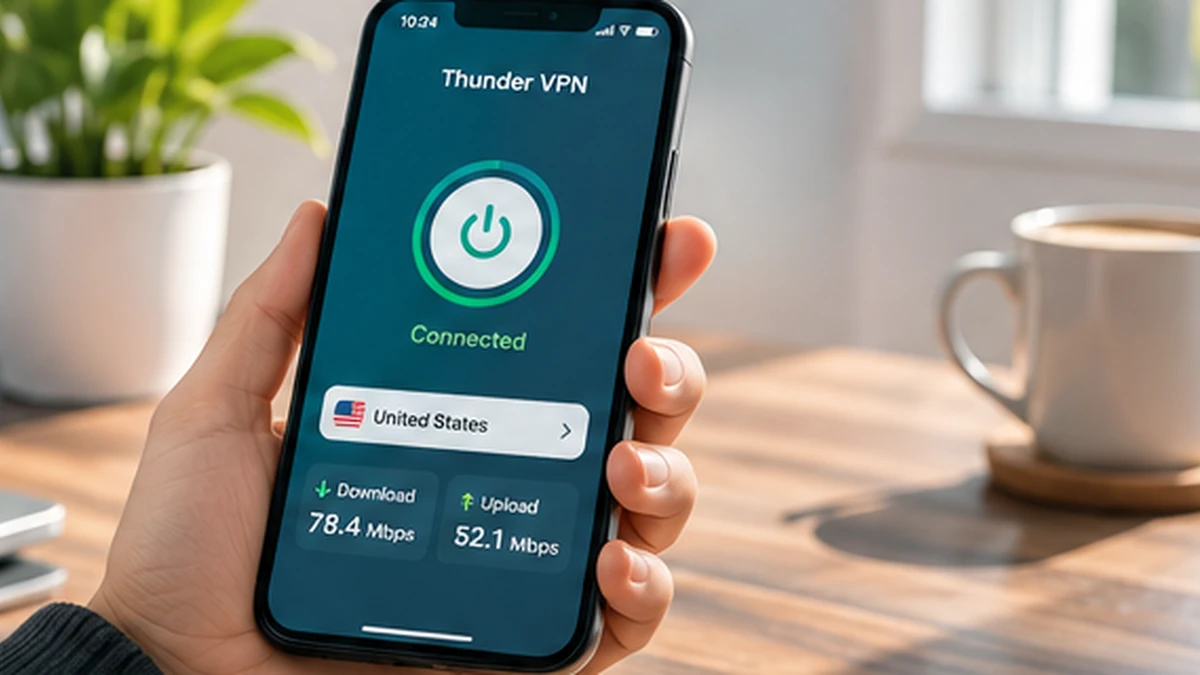
Thunder VPN connection problems usually show up as a connect button that keeps spinning, a session that drops after a few seconds or a connected status with no pages loading. These issues are frustrating, but most have simple causes on the phone, the network or the chosen server.
Working through the checks below in order saves time, because the quickest fixes come first. Most people find the cause within the first few sections, without needing to reinstall anything or change advanced settings.
Confirm Your Internet Works Without the VPN
Disconnect Thunder VPN and open a website. If it fails to load, the problem is your Wi-Fi or mobile data rather than the app. Restart your router, toggle airplane mode for a few seconds or move closer to a stronger signal before trying the VPN again.
Try a Different Server Location
Individual servers can be busy, under maintenance or blocked on certain networks. Open the server list, pick a different location, preferably one close to you, and connect again. If one location works and another does not, the issue lies with the server rather than your phone.
- Choose a nearby location to reduce delay
- Try two or three different servers before moving on
- Switch back to the automatic or recommended option if available
Switch Between Wi-Fi and Mobile Data
Some networks, including many schools, workplaces and hotels, block VPN traffic on purpose. If Thunder VPN connects on mobile data but not on a specific Wi-Fi network, that network is probably restricting VPN use. Respect the network’s rules if you are required to follow them.
| What you see | Likely cause | What to try |
|---|---|---|
| Works on data, fails on Wi-Fi | Network blocks VPN traffic | Use mobile data or ask the network owner |
| Fails on every network | App, permission or phone setting | Check permissions and update the app |
| Connects but pages do not load | Busy server or DNS issue | Change server and reconnect |
| Drops after a few minutes | Battery saver closing the app | Exclude Thunder VPN from battery optimisation |
Check Android VPN Permissions and Settings
Android only allows one VPN at a time. If another VPN app or an always-on VPN setting is active, Thunder VPN cannot connect. Open Settings, search for VPN and make sure no other VPN is set to always on.
Battery and data saver
Aggressive battery optimisation can stop the VPN service in the background. Set Thunder VPN to unrestricted or not optimised in battery settings, and allow it to use data while data saver is on.
Private DNS
A custom Private DNS setting can sometimes clash with VPN connections. If you set one manually, switch it to automatic temporarily and test again.
Update, Clear Cache or Reinstall the App
Outdated versions may not work with current servers. Open Google Play, check for updates to Thunder VPN and install any that are available. If problems continue, clear the app’s cache from Android’s app settings, then reopen it and connect.
As a final step, uninstall the app, restart your phone and reinstall from the official Thunder VPN download listing. Avoid modified files, which our Thunder VPN APK MOD article explains can cause unstable connections.
Uninstalling removes local settings. If you have an optional subscription, sign in to the same Google Play account afterwards so the purchase can be restored.
Check the Time, Date and Phone Updates
Encrypted connections rely on accurate time. If your phone’s clock is wrong, secure handshakes with VPN servers can fail. Open date and time settings and turn on automatic time from the network, then try connecting again.
Pending Android system updates can also leave networking in an odd state. Install any available system updates, restart the phone and reconnect. A simple restart alone clears many temporary glitches in the VPN service.
Look for Apps That Interfere with VPNs
Firewall apps, ad blockers that use a local VPN, parental control tools and some antivirus apps all compete for the same VPN slot on Android. Only one can be active at a time, so the most recent one usually wins and disconnects the others.
- Pause local VPN ad blockers while using Thunder VPN
- Check parental control or work profile restrictions
- Review any firewall app that controls network access
- Disable always-on VPN settings for other apps
When the Problem Is Outside Your Phone
Occasionally the cause is a service-wide issue or heavy demand on free servers at peak times. Waiting a little and trying again later, or switching to a different region, often helps. Check recent reviews on the Google Play listing to see whether other users report the same problem.
Some countries and networks limit VPN use by law or policy. Check the rules that apply to you before trying to work around a block, and choose a different network where VPN use is permitted.
Quick Checklist Before Contacting Support
If nothing above has worked, run through this short checklist. It covers the points most often missed and gives useful details to include if you contact the support address shown on the app’s Google Play listing.
- Internet works with the VPN switched off
- At least three different servers have been tried
- No other VPN, firewall or ad blocker is active
- Battery optimisation is off for Thunder VPN
- The app and Android system are fully updated
- Phone date and time are set automatically
Note the network type, server name and any message shown when the connection fails. These details help support teams understand the problem much faster than a general description.
Screenshots of error messages are especially helpful, because the exact wording often points to a network block, a server issue or a permission problem. Keep them together with the time each failure happened for a clearer picture.
Conclusion
Thunder VPN usually reconnects once you rule out the basics: a working internet connection, a responsive server and a network that allows VPN traffic. Check for conflicting VPN settings, relax battery restrictions and keep the app updated from Google Play. Reinstalling the official version solves most of the remaining cases.
Related Guides

Thunder VPN Download: Install the Android App from Google Play
Find the right listing, check it carefully and install Thunder VPN on Android in a few minutes.
Read article
Thunder VPN APK: Installing the App File Safely on Android
Learn what an APK file is, when people use one and how to reduce the risks of sideloading.
Read article
Download Thunder VPN APK MOD: Risks and Safer Choices
Modified builds promise unlocked servers and no ads. Here is what they can cost you instead.
Read article