

Thunder VPN login questions usually come up when people expect a username and password screen and cannot find one. Many VPN services require an account before you can connect, so the absence of a login form can feel confusing at first, especially for anyone switching from another provider.
Thunder VPN takes a simpler approach for its free service. This article explains how connecting works without an account, how optional paid features are tied to your Google Play account, and how to spot fake login pages that try to collect your details.
Connecting Without Creating an Account
The free version of Thunder VPN is designed around a single connect button. You install the app, open it, approve the Android VPN request and tap connect. There is no registration form, email confirmation or password to remember for that basic service.
That design keeps setup quick and means there is less personal information tied to the app directly. It does not mean no data is processed at all, so it is still worth reading the app’s privacy policy and the data safety section on Google Play.
How Optional Subscriptions Are Linked
If you choose a paid upgrade inside Thunder VPN, the purchase runs through Google Play billing. Your subscription is linked to the Google account signed in to the Play Store on that phone, rather than to a separate Thunder VPN username.
| Task | Where it happens |
|---|---|
| Connect on the free service | Inside the app, no account needed |
| Buy an optional upgrade | Google Play billing inside the app |
| Restore a purchase on a new phone | Sign in to the same Google account, then restore in the app |
| Cancel a subscription | Google Play, then Payments and subscriptions |
Restoring access on a new device
Sign in to Google Play with the account that made the purchase, install Thunder VPN from the official listing and look for a restore option in the app’s settings or subscription screen. If it does not appear, check that the same account is active in Google Play.
Spotting Fake Thunder VPN Login Pages
Because people search for a login, some websites create pages that ask for an email, phone number or payment card in exchange for premium access. The real app does not need you to visit a website to log in.
- Pages asking for your Google password outside Google’s own sign-in
- Forms promising free premium access after a survey
- Requests for card details on a site that is not Google Play
- Messages urging you to log in to avoid losing your VPN
Never type your Google account password into a page that is not on a google.com domain. Close the page and manage purchases from the Play Store app instead.
When the App Seems to Ask for Sign-In
If a sign-in prompt appears inside the app, it is most likely Google Play confirming a purchase or restoring a subscription. Check that the prompt is the familiar Google Play sheet. If something looks unusual, close it and update Thunder VPN from the official listing.
Connection problems sometimes get mistaken for login problems. If the app opens but will not connect, our article on why Thunder VPN is not connecting covers network and server fixes, and the Thunder VPN download page explains how to reinstall safely.
Privacy Benefits of Account-Free Use
Without a username, email or password, there is less personal data tied to your VPN sessions inside the app itself. It also removes the risk of a reused password being leaked from a VPN account, which is a common problem with services that require registration.
- No password to forget or reuse
- Nothing to reset if you change phones
- Fewer personal details stored by the app itself
- Faster setup for first-time users
Google Play still knows that you installed the app and, if relevant, that you bought an upgrade. That information is handled under Google’s own privacy terms.
Managing Thunder VPN on More Than One Device
Because the free service has no account, each phone simply runs its own copy of the app. Install Thunder VPN from Google Play on each device and connect separately. Settings such as favourite servers stay on the phone where you set them.
Paid features follow your Google Play account. Signing in with the same account on another Android device and using the restore option inside the app is usually enough to unlock them there too, subject to the subscription’s own terms.
| Situation | What to do |
|---|---|
| New phone, free service | Install from Google Play and connect |
| New phone, paid upgrade | Use the same Google account and restore in the app |
| Shared family tablet | Check whose Google account made the purchase |
| Factory reset | Reinstall the app and restore if you have an upgrade |
Common Misunderstandings About Logging In
Many users search for a login after seeing a prompt from another app, an advert inside the free version or a website that copies the Thunder VPN name. Knowing where genuine prompts come from makes these situations far less confusing.
- Adverts may show their own sign-up forms that are unrelated to the VPN
- Google Play payment sheets ask for your Google account, not a VPN password
- Websites using the name cannot change anything inside your app
- A new phone does not need a Thunder VPN username to connect
If you are still unsure whether a prompt is genuine, close it, open the Play Store and check your Payments and subscriptions page. Everything related to paid access appears there, which gives you a reliable reference point.
Google Play receipts arrive by email at the address linked to your Google account. Searching your inbox for the receipt quickly shows which account holds any Thunder VPN upgrade.
Conclusion
Thunder VPN login is not required for the free service, since connecting only takes the in-app button and the Android VPN approval. Paid upgrades rely on your Google Play account, which also handles restores and cancellations. Treat any website asking you to log in for Thunder VPN with caution, and manage everything through the app and Google Play.
Related Guides
Thunder VPN Extension: What to Know Before Using It in a Browser
Browser extensions and VPN apps work differently. Check these points before adding one to Chrome.
Read article
Thunder VPN Free Internet: What a VPN Can and Cannot Do
A free VPN is not free data. Here is what Thunder VPN really offers and what it does not.
Read article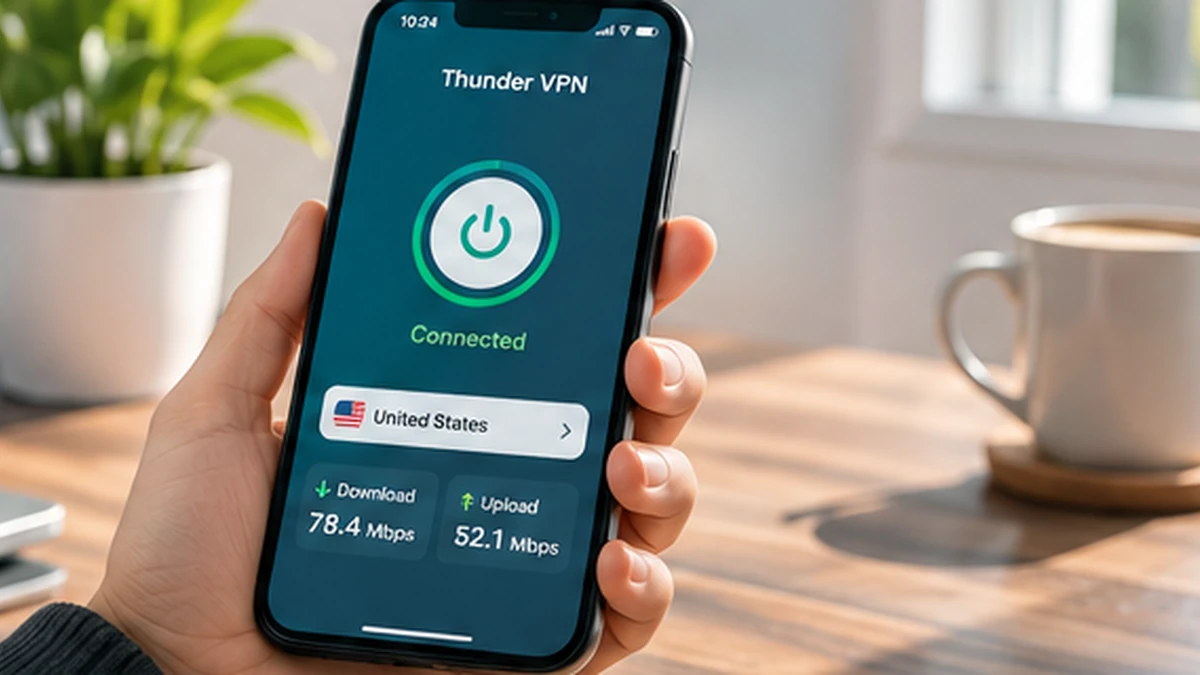
Why Is Thunder VPN Not Connecting? Practical Fixes for Android
Work through these checks in order when the connect button spins or the VPN keeps dropping.
Read article